
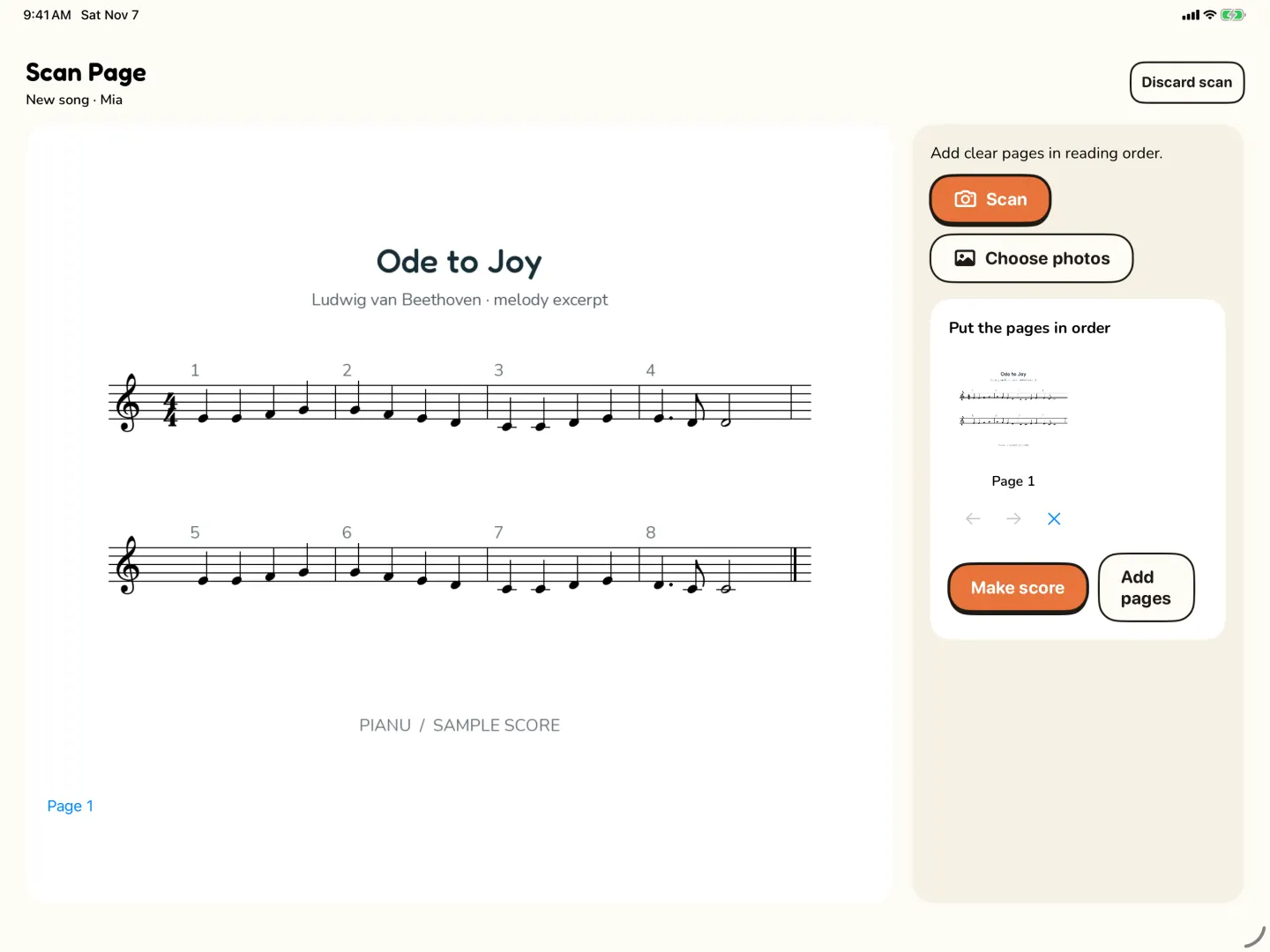
A digital score of your child's printed music lets every practice tool work on the piece they are learning. This guide shows how to scan one or more pages into Pianu, check the result and fix a wrong note in the editor.
Which pages work for a scan?
Use a printed page. Pianu does not promise to read handwriting or every page layout. A scan is a starting point, and it can contain errors, so plan time to check it.
A good photo makes the page easier to read. These tips help with any document photo:
- Put the page flat on a table. Press the book open, or copy the page first.
- Use even light. Avoid strong shadows from your hand or phone.
- Hold the camera straight above the page.
- Keep the whole page in the frame, with all the staves and the edges.
- Check the photo before you send it. If it is blurry or cut off, take it again.
If the page has pencil marks from the teacher, that is fine for practice at home. But heavy marks over the notes can make the page harder to read. A clean copy of the page, if you have one, is a good choice for the scan.
How do I scan the pages?
- In Pianu, open Scan Page.
- Take a photo of the first page, or choose one from Photos.
- If the piece has more pages, add each one. Add them in reading order: page 1, then page 2, and so on.
- Send the scan. You can keep using Pianu while it works.
- Open Requests in My Songs. When the result is ready, it shows the notes read from your pages.
- Choose Make new song. This opens a new draft. Done saves it to My Songs.
The picture at the top of this post shows Scan Page with a sample page added.
The order of the pages matters. Add them in reading order, so that the song follows the music from the first bar to the last.
How do I check the scan against the page?
The result screen asks you to check the notes and rhythm against your pages. Use Source pages or Show source page to compare the score with each photo.
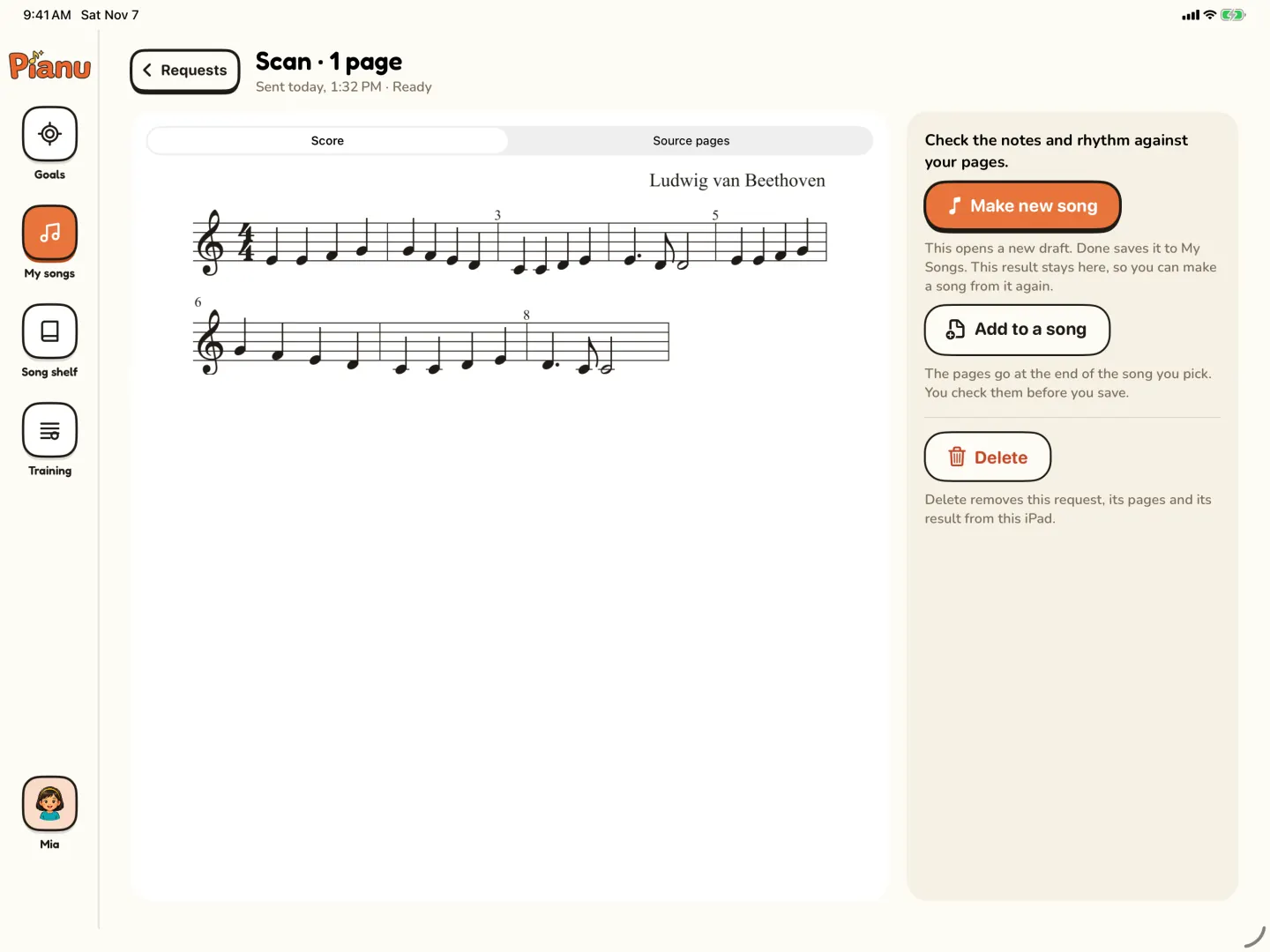
Go one bar at a time. Look for:
- A note on a different line or space than on the page.
- A missing note, or an extra one.
- A wrong note length, for example a quarter note that should be a half note.
- A missing rest.
- A different number of beats in a bar.
You do not need to be a music reader to find most of these. Compare the two pictures, the way you would compare two photos for differences. If you are not sure about a bar, ask your child's teacher.
Take your time with this step. A note that is wrong in the song is a note your child learns wrong. Checking once now saves many corrections later at the piano.
How do I fix a wrong note in the editor?
Open the song in the editor. The editor shows the score with keys for each note name along the bottom, and buttons for note lengths, sharps and flats, and rests.
- Select the wrong note in the score.
- Choose the right note name or note length with the buttons at the bottom.
- Check the bar again against the page.
- Tap Done to save.
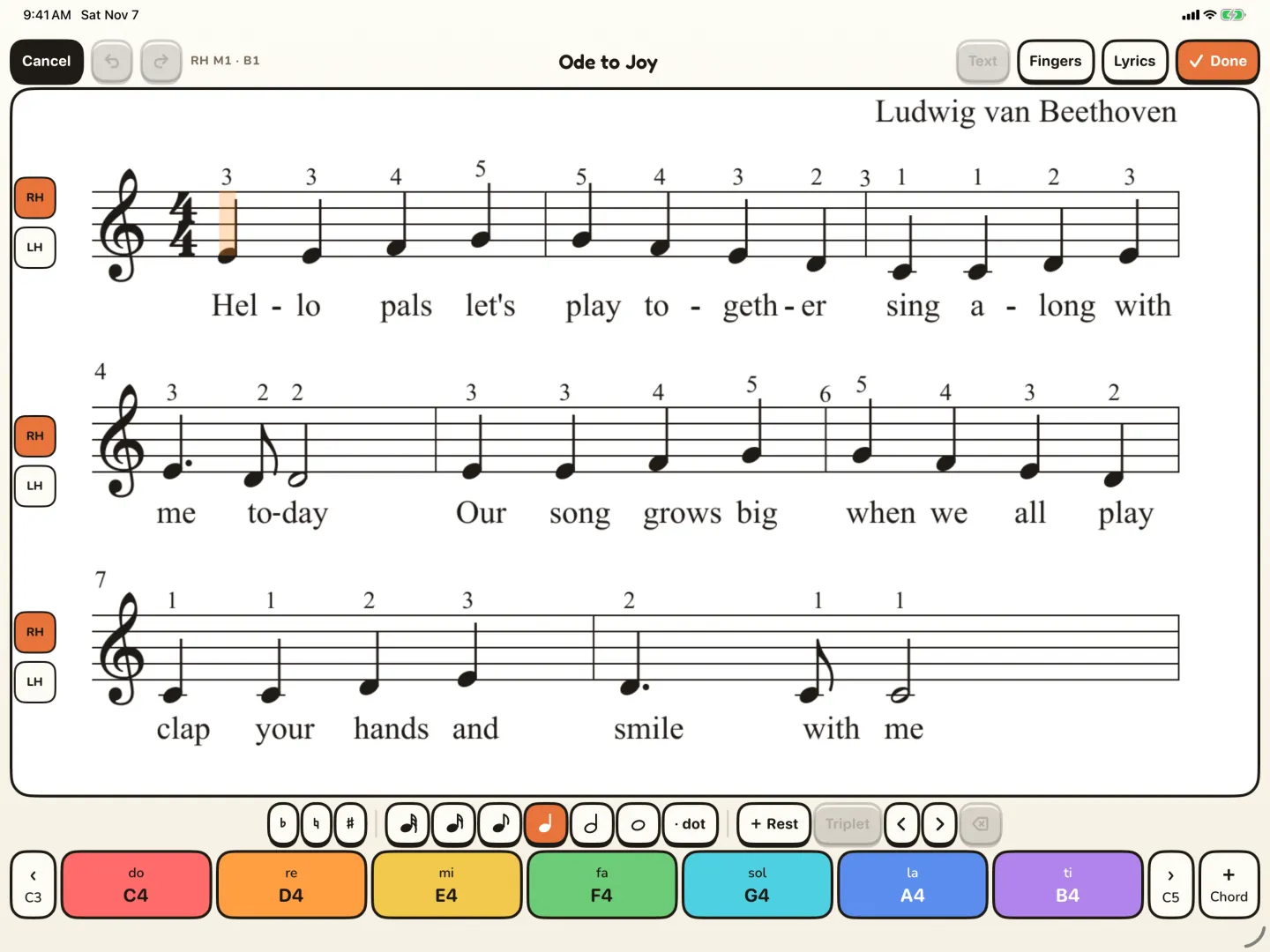
The RH and LH letters at the left of each staff show which hand plays it. The editor can also show finger numbers and lyrics above and below the notes.
What are the other ways to get music into Pianu?
A scan is not the only way. Pick the way that fits the music you have:
| Way | Good for | What you do |
|---|---|---|
| Scan Page | A printed page from a lesson book or the teacher | Take a photo, check the notes, correct them |
| MusicXML import | Music that you already have as a file | Import the file into Pianu |
| Editor | A short piece, or a page that does not scan well | Write the score from a blank page |
| Song Shelf | Starting without your own music | Pick a song from the catalog |
When the song is ready, you can also export it as MusicXML. That is useful if you want a copy outside Pianu.
What happens after the scan?
The new song works with all the practice tools. Your child can listen to it first, then start Practice on iPad, where the score waits for the right note. You can ask for finger numbers, loop a hard bar or slow the tempo.
Songs sync through iCloud.
To plan a week of practice with the scanned piece, read how to practice the piece the piano teacher assigned. If your child also has a lesson book, read piano apps vs piano books. For all the scan steps on one page, see scan sheet music to iPad.
Read more: Scan sheet music
Questions parents ask
What if the photo is blurry?
Take it again before you send it. Put the page flat, use even light and hold the camera straight above the page.
Does page order matter?
Yes. Add the pages in reading order, so that the song follows the music from the first bar to the last.
What should I check first after a scan?
Go bar by bar. Look for notes on the wrong line, missing notes, wrong note lengths and missing rests. Use Source pages to compare with your photos.
Can I get a copy of the song out of Pianu?
Yes. You can export a song as MusicXML.
Try Pianu free for 7 days.
Try free for 7 days